Tracking Claim Status
After a claim is submitted, you can follow it from the Claims page — a single place to see every claim, its status, and what you're still owed.
Open the Claims page
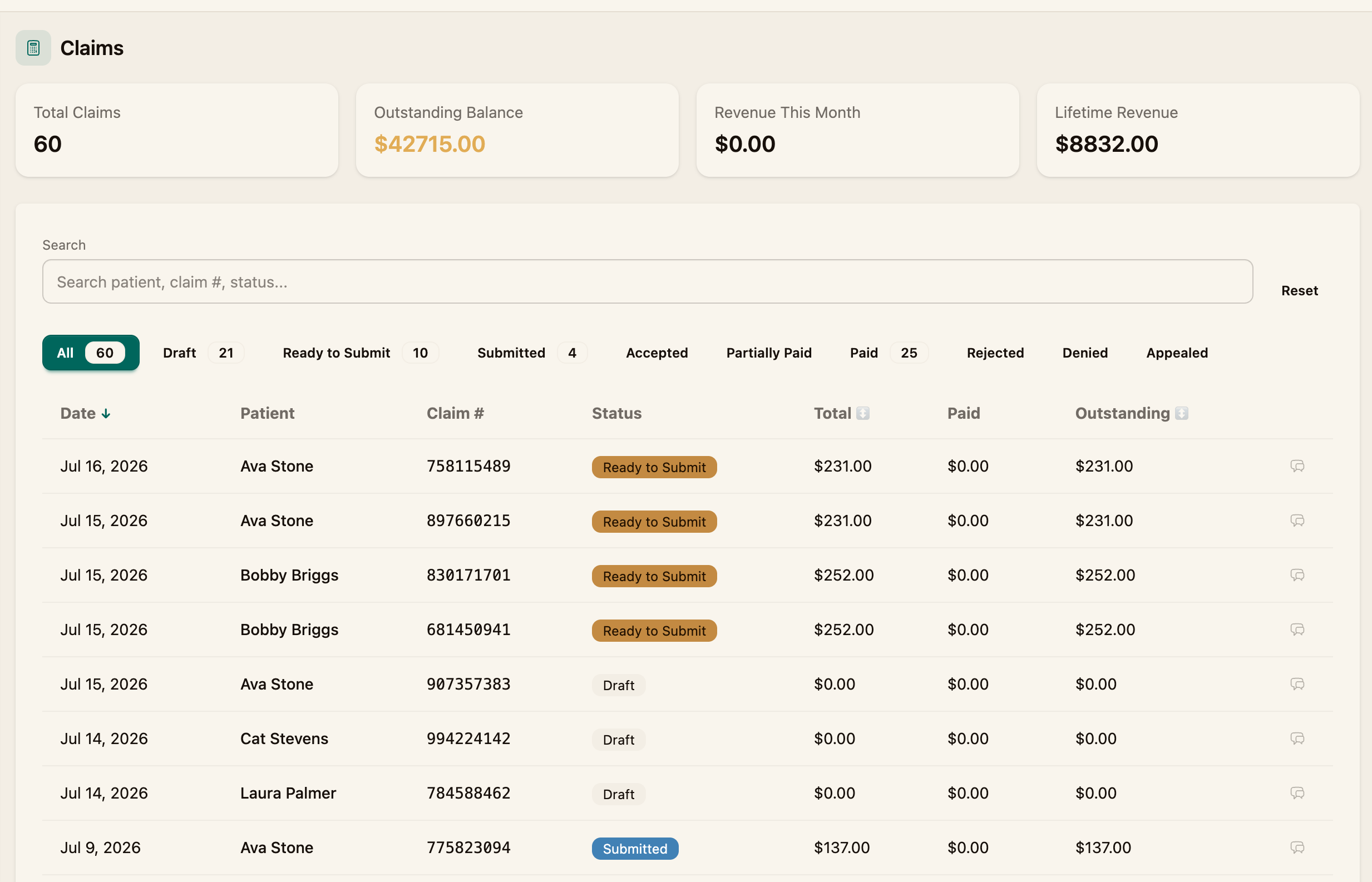
From the navigation menu, go to Claims. At the top, four tiles summarize your billing at a glance:
- Total Claims — how many claims you have
- Outstanding Balance — the total still owed across all claims
- Revenue This Month
- Lifetime Revenue
Below the tiles, each claim is listed with its date, patient, claim #, status, and three amounts: Total, Paid, and Outstanding.
Find a claim
- Search by patient, claim number, or status.
- Filter by status using the tabs above the list — each shows a count.

Claim statuses
A claim moves through these statuses:
| Status | What it means |
|---|---|
| Draft | Being built; not yet validated |
| Ready to Submit | Validated and ready to send |
| Submitted | Sent to the payer through the clearinghouse |
| Accepted | The payer accepted the claim for adjudication |
| Partially Paid | Paid, but a balance remains |
| Paid | Paid in full |
| Rejected | Returned before adjudication (usually a formatting or data error) — correct and resubmit |
| Denied | Adjudicated but not paid — see What to Do When a Claim is Denied |
| Appealed | A denial that's under appeal |
Check a claim's status with the payer
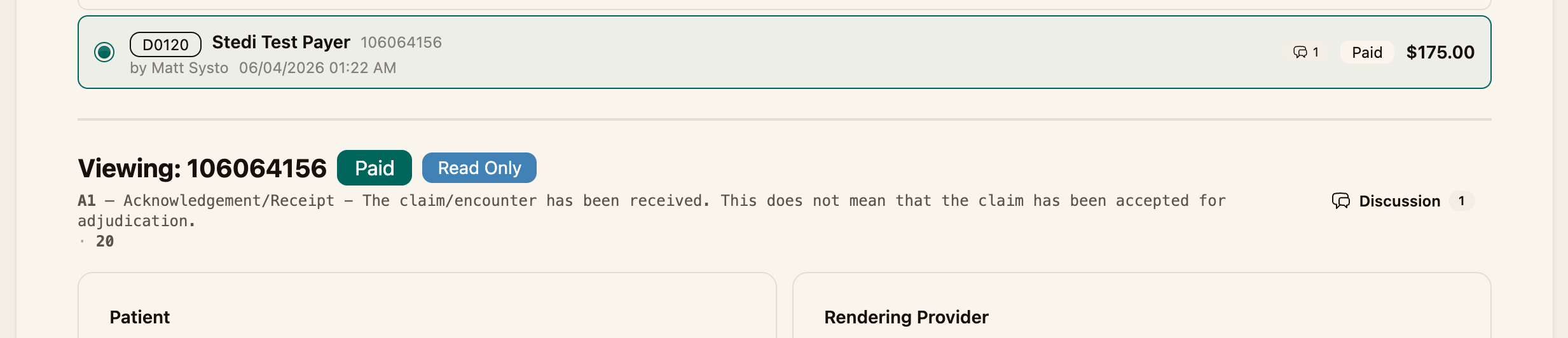
Open the claim from its visit's Claim Workflow tab. A submitted claim is Read Only and shows the latest acknowledgement message returned by the clearinghouse — for example, "A1 – Acknowledgement/Receipt - The claim/encounter has been received."
To pull the latest update from the payer, click Check Claim Status.
Recording the outcome
When the payer's response comes back, the claim's status and amounts update:
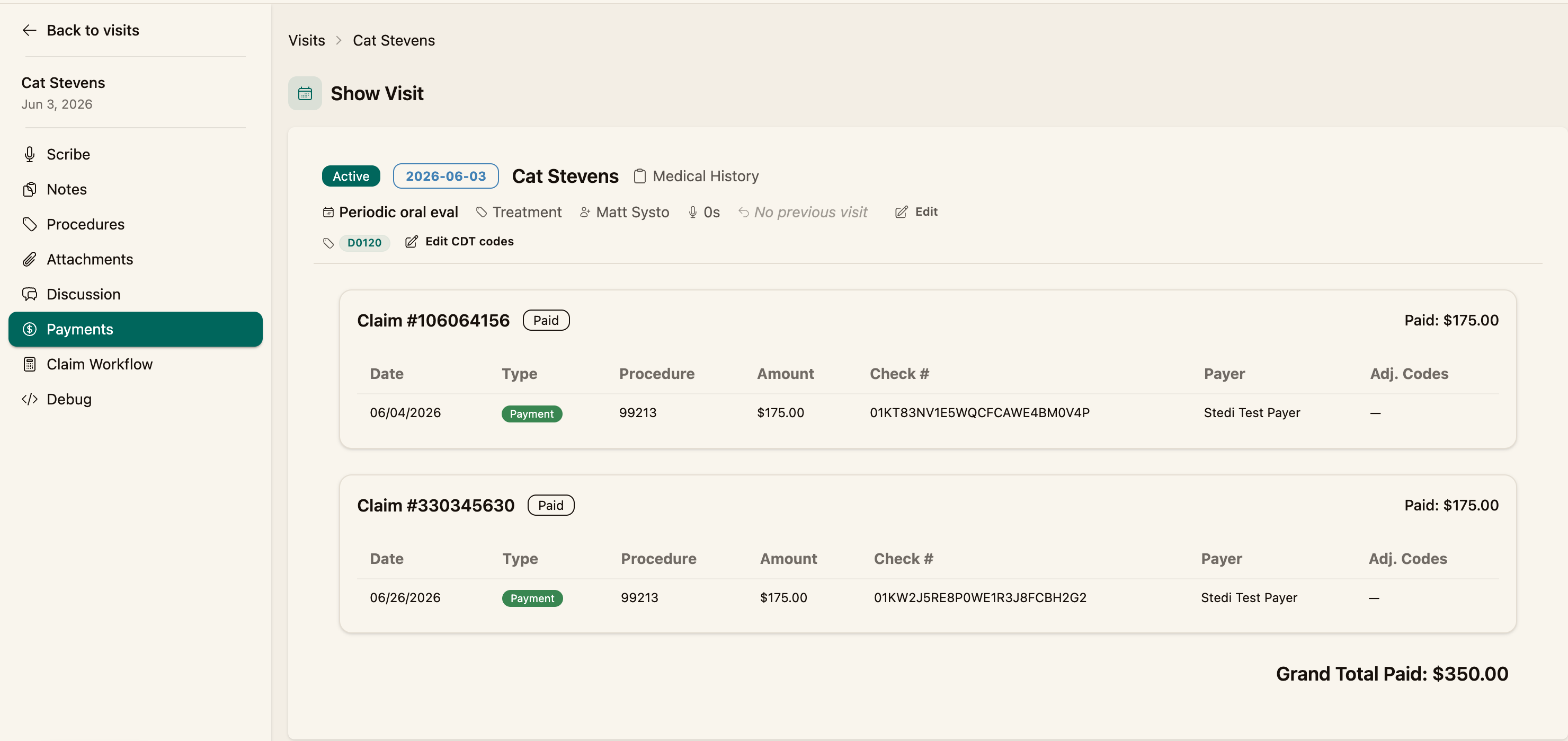
- Payment details arrive on the visit's Payments tab when an ERA (835) is processed, and the claim's Paid and Outstanding amounts update.
- You can also set the outcome manually on the claim with Mark as Paid or Mark as Denied.