Adding Procedures
Overview
A procedure is a single billable line on a visit. Each one ties together a dental CDT code, the medical CPT/HCPCS code that actually gets billed, one or more ICD-10 diagnoses, and a fee. Coral suggests procedures automatically from the visit recording, but you can also add them by hand — for example, when you're documenting a visit that wasn't recorded.
This guide covers adding a procedure manually.
Before you begin
- Open the visit from the Dashboard or the Visits list.
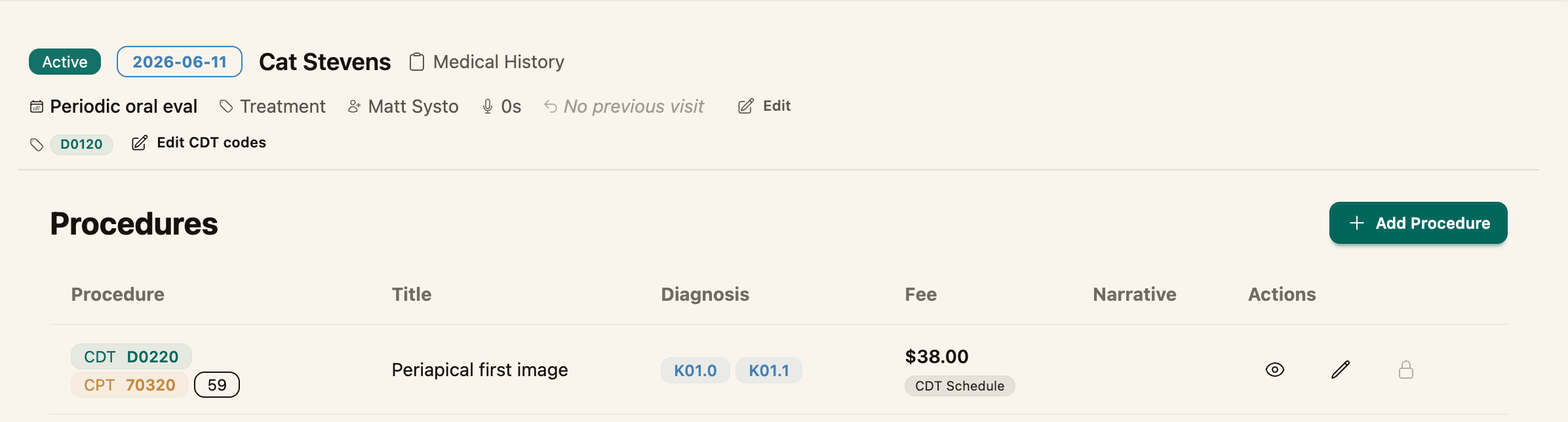
- Select the Procedures tab. Any procedures already on the visit appear here in a table.
Step 1 — Open the Add Procedure form
On the Procedures tab, click + Add Procedure.
Step 2 — Use a suggested code (fastest)
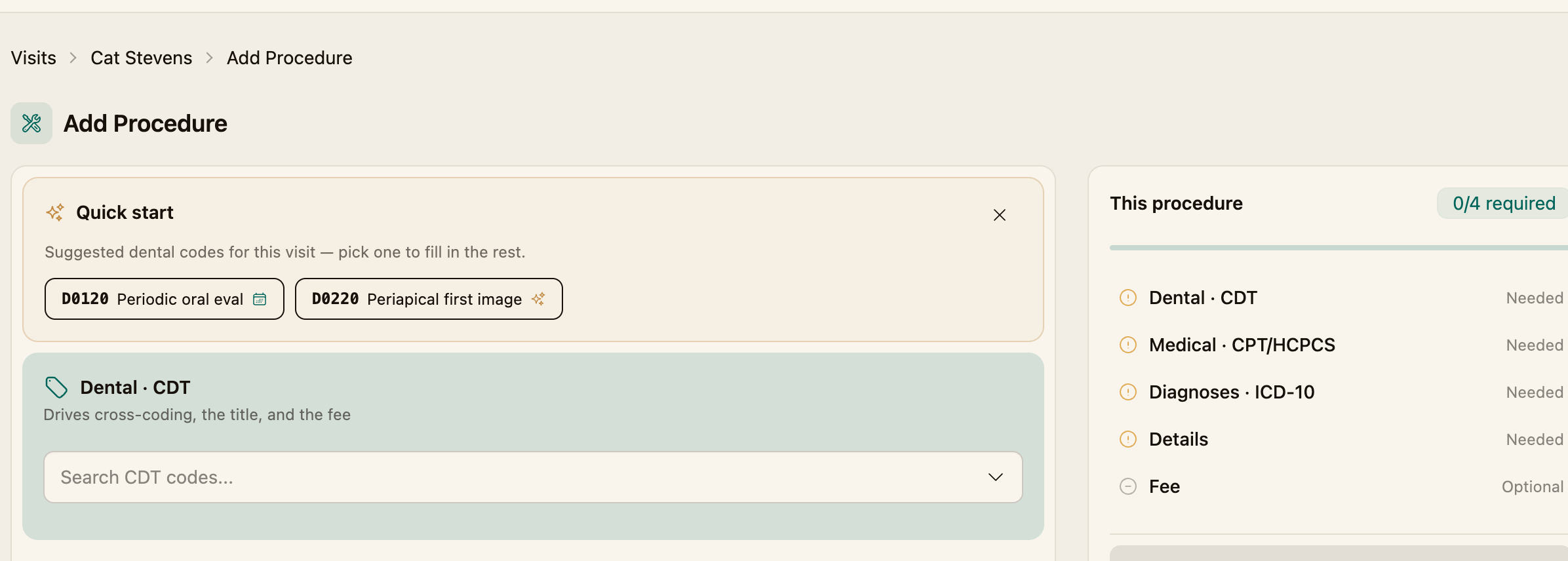
At the top of the form, Quick start lists suggested dental codes for this visit. Click one to auto-fill the CDT code, title, and fee, then skip ahead to Step 5 to review.
If none of the suggestions fit, enter the codes manually in the next step.
Step 3 — Enter the codes
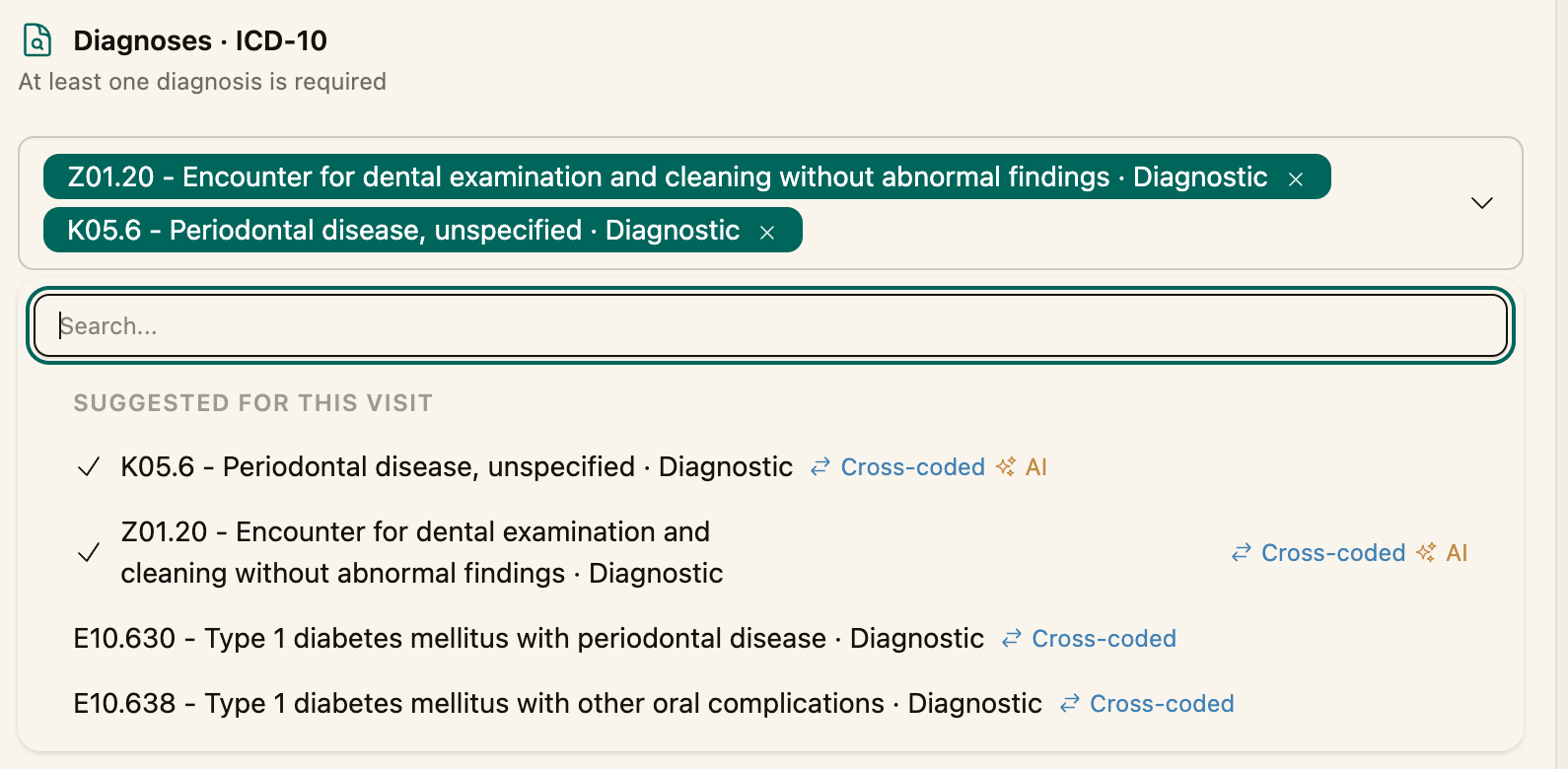
Add the three codes that make up the procedure:
- Dental · CDT — search and select the CDT code. This drives cross-coding, the procedure title, and the fee.
- Medical · CPT/HCPCS — the code that actually gets billed on the claim.
- Diagnoses · ICD-10 — search and add at least one diagnosis. You can add more than one.
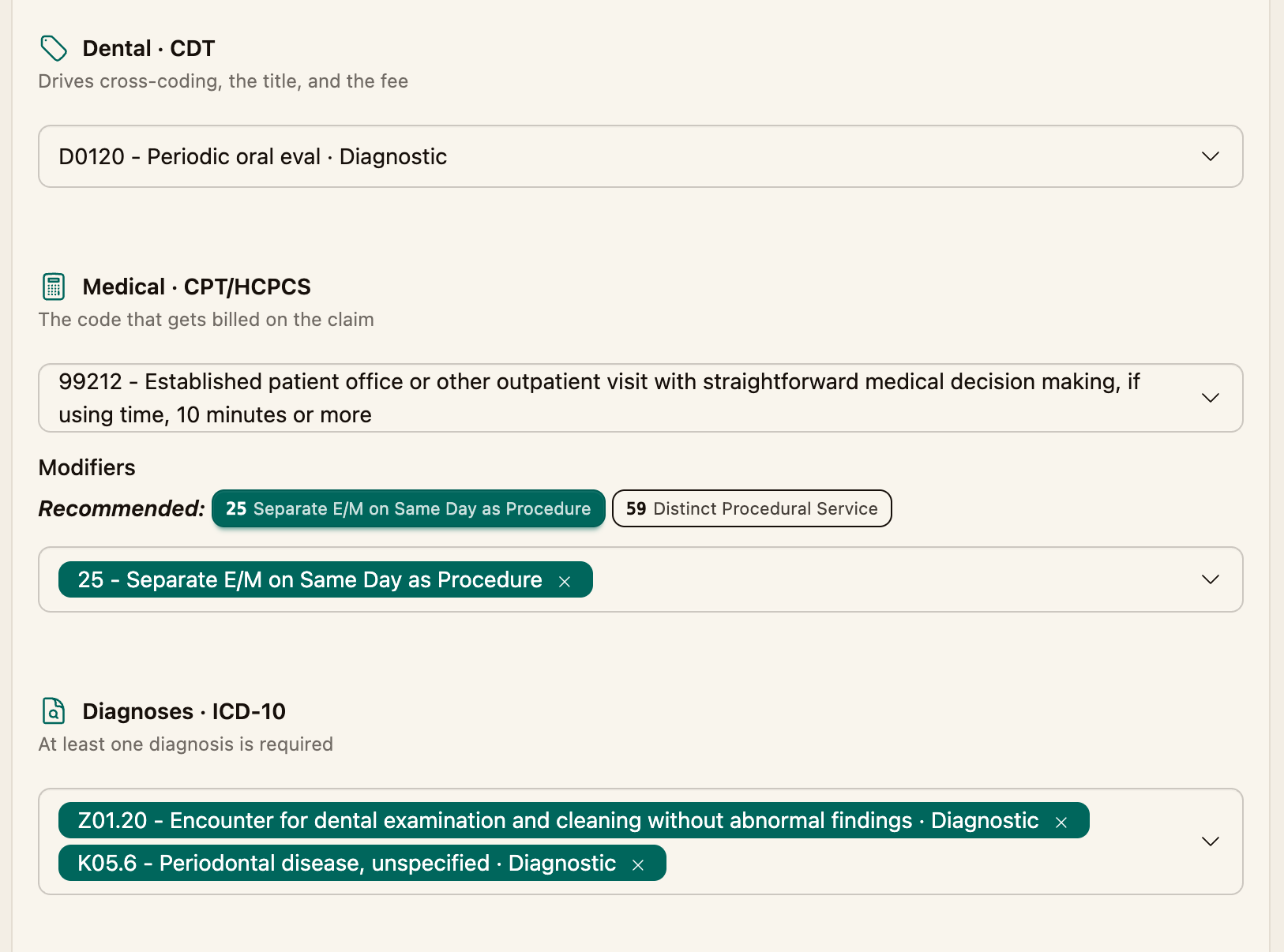
Crosscoded and AI-suggested codes To make code selection faster and more accurate, Coral surfaces two types of suggestions directly in the code dropdowns:
- Crosscoded codes — when you select a CDT code, Coral automatically displays the CPT and ICD-10 codes most commonly associated with that procedure based on our built-in crosscode mappings. These are marked with a crosscode symbol (⇄) so you can identify them at a glance.
- AI-suggested codes — if a visit transcript was recorded with the AI scribe, Coral will also suggest codes based on what was documented during the visit. These appear alongside the crosscoded suggestions and are labeled accordingly.
All suggestions are starting points only. Your billing staff should review and confirm all codes before the claim is submitted.
Modifiers If the procedure requires a modifier, you can search and add one to the CPT code. Modifiers that are commonly used with the selected CPT code are flagged with a Common label so the most relevant options are easy to find.
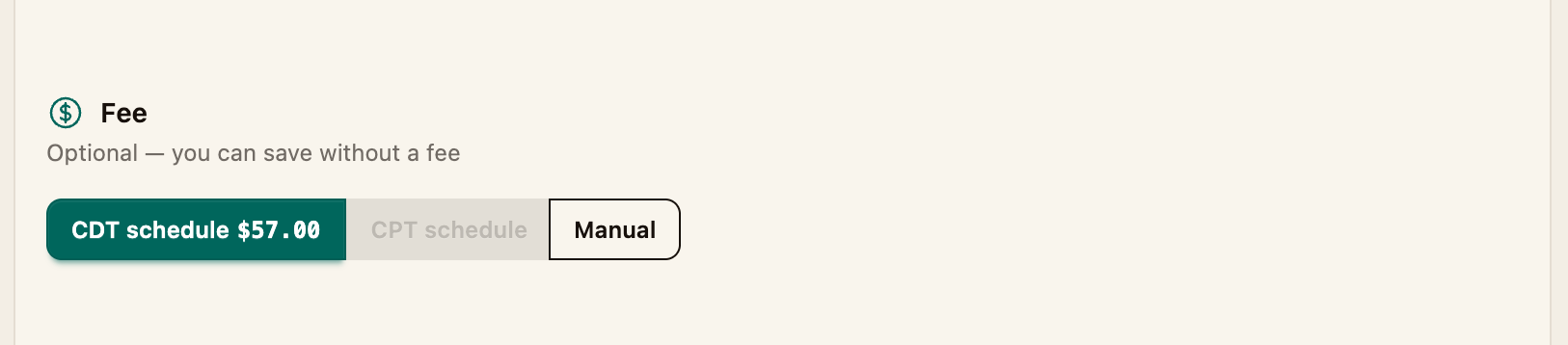
Step 4 — Set the fee
Under Fee, choose where the amount comes from:
- CDT schedule or CPT schedule — pull the fee from a configured fee schedule.
- Manual — type the fee yourself.
The fee is optional — you can save the procedure without one and add it later.
Step 5 — Review the details
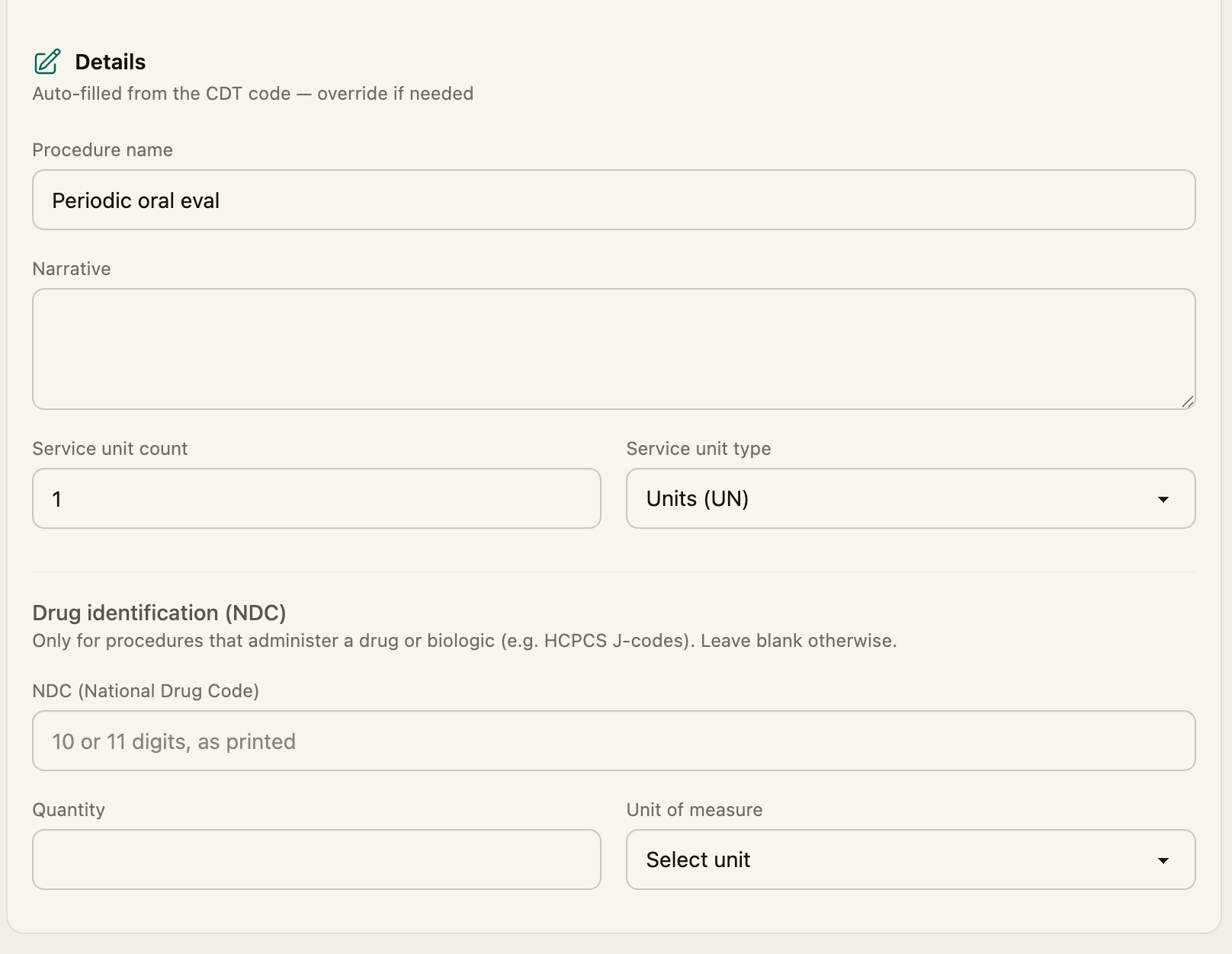
The Details section is auto-filled from the CDT code. Review and override as needed:
- Procedure name — the title shown on the claim
- Narrative — a description supporting the procedure (used for documentation and appeals)
- Service unit count and type (Units, Minutes, Days, or Hours)
- Drug identification (NDC) — only for procedures that administer a drug or biologic (e.g. HCPCS J-codes); leave blank otherwise
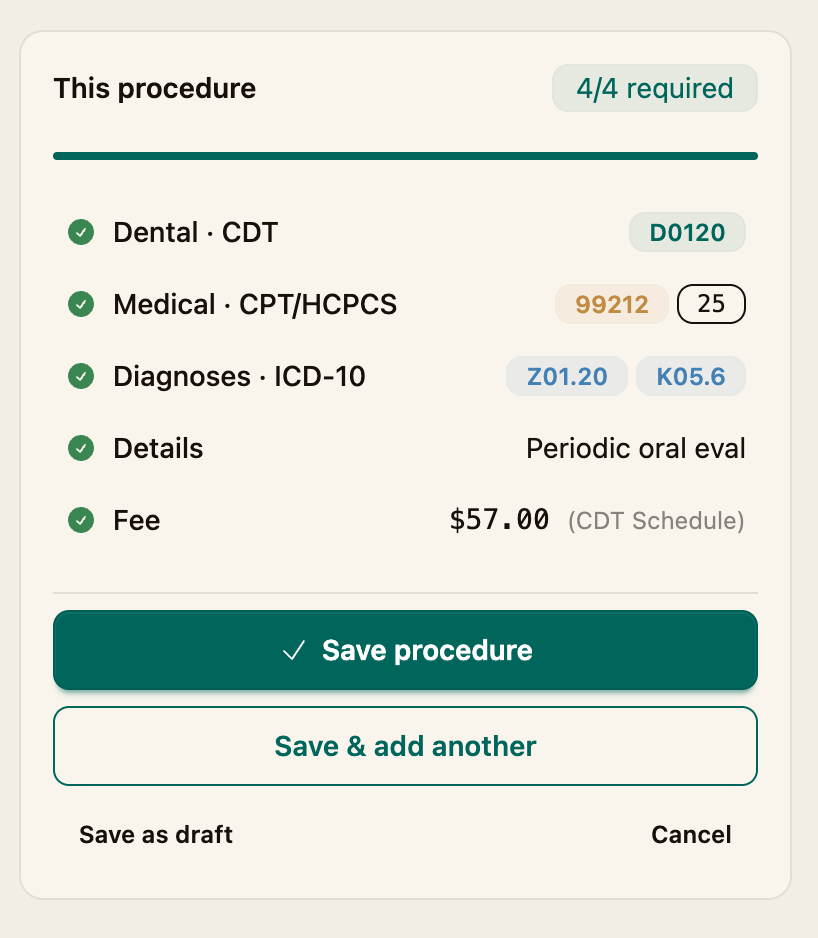
The This procedure checklist on the right tracks what's still required — a CDT code, a CPT code, a diagnosis, and a title.
Step 6 — Save
Choose how to finish:
- Save procedure — save and return to the Procedures tab
- Save & add another — save and start a new procedure for the same visit
- Save as draft — save an incomplete procedure to finish later
Your saved procedures are now available to add to a claim.
Next steps
- Build the claim (How to Create a Claim)