How to Generate Clinical Notes
Learn how to efficiently record patient visit notes and generate necessary clinical documentation.
Overview
Coral turns a visit recording into documentation on the Notes tab. There are two pieces:
- Transcript Summary — a structured summary Coral generates automatically from the recording.
- Clinical Notes — formatted notes you generate by applying a template (for example, Hygiene & Periodic Exam or Crown Prep) to that summary.
Before you begin
Record or import the visit first, so a transcript exists — see How to Start a Visit Recording. Then open the visit and select the Notes tab.
The Transcript Summary
Under Visit Artifacts, Coral shows the Transcript Summary once the recording finishes processing (it displays a Completed badge). From here you can:
- Copy note — copy the summary to paste elsewhere
- Generate PDF — save it as a PDF
- Regenerate — regenerate the summary, optionally with a different model
- Delete — remove it
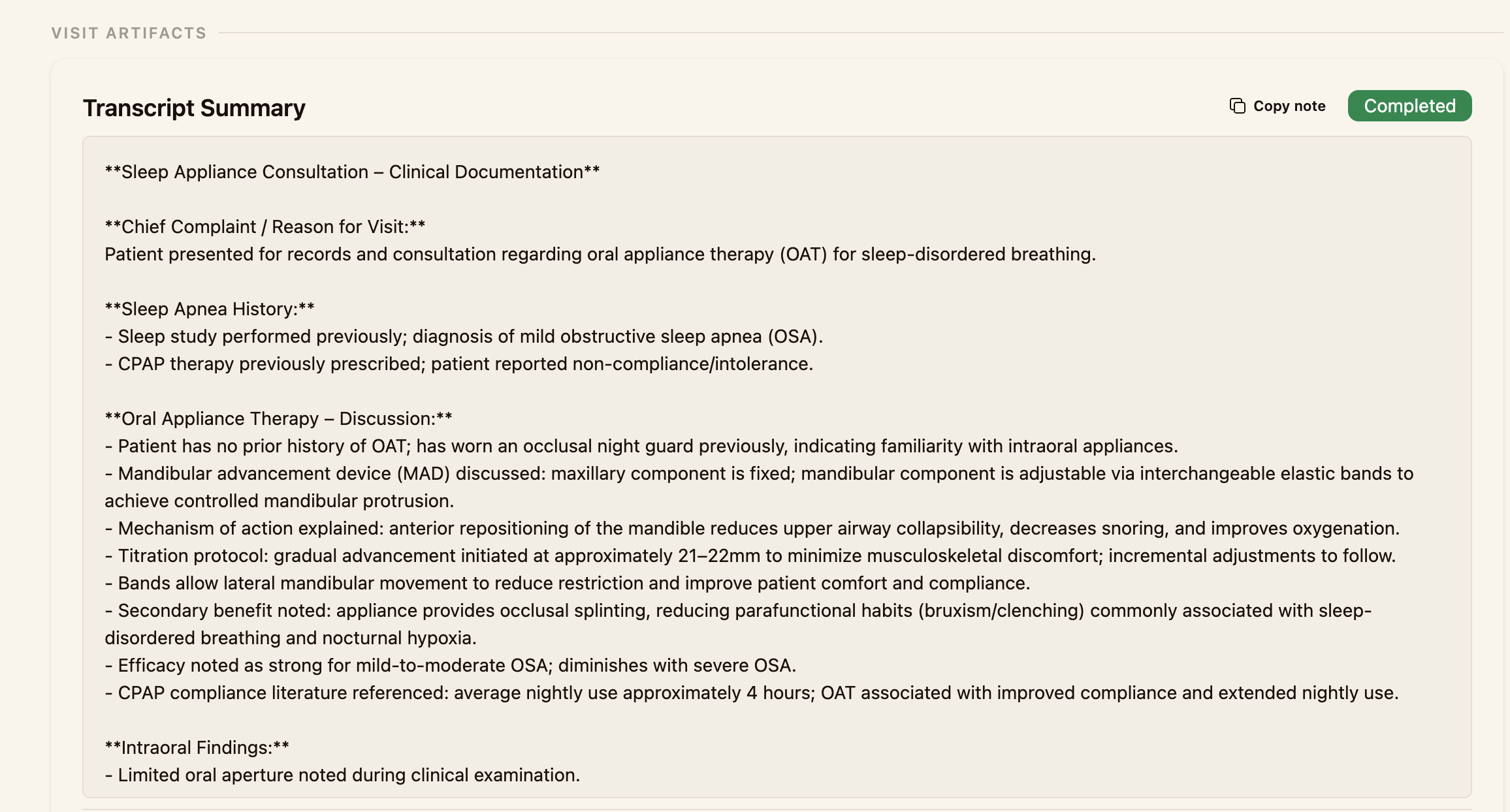
Generate a clinical note from a template
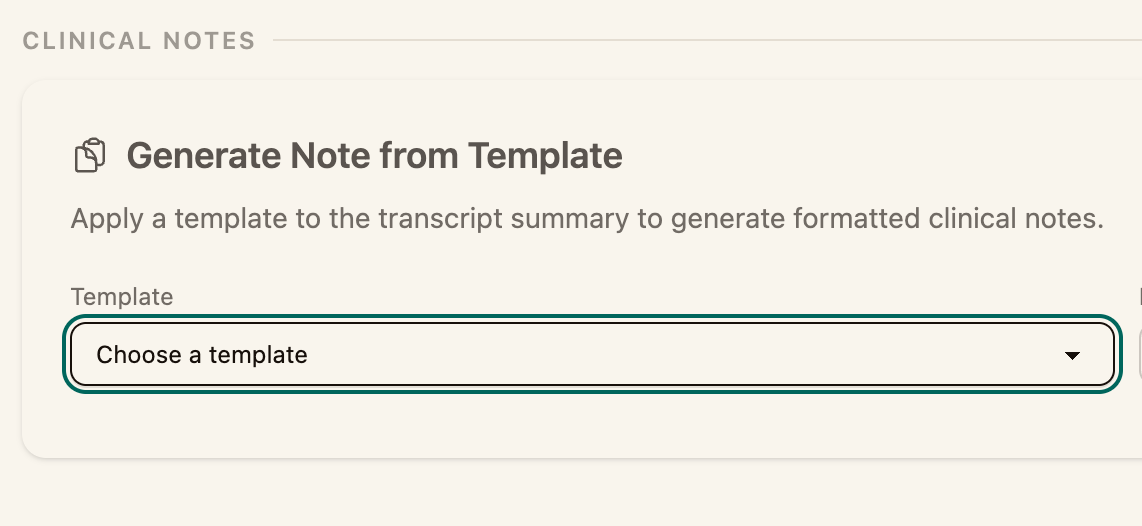
Step 1 — Choose a template
Scroll to Clinical Notes and, under Generate Note from Template, open the Template dropdown and pick the one that matches the visit — for example Limited / Emergency Exam, Hygiene & Periodic Exam, Crown Prep, Endodontic Therapy, or Botox.
Step 2 — Generate the note
Click Generate Note. Coral applies the template to the transcript summary and produces a formatted clinical note.
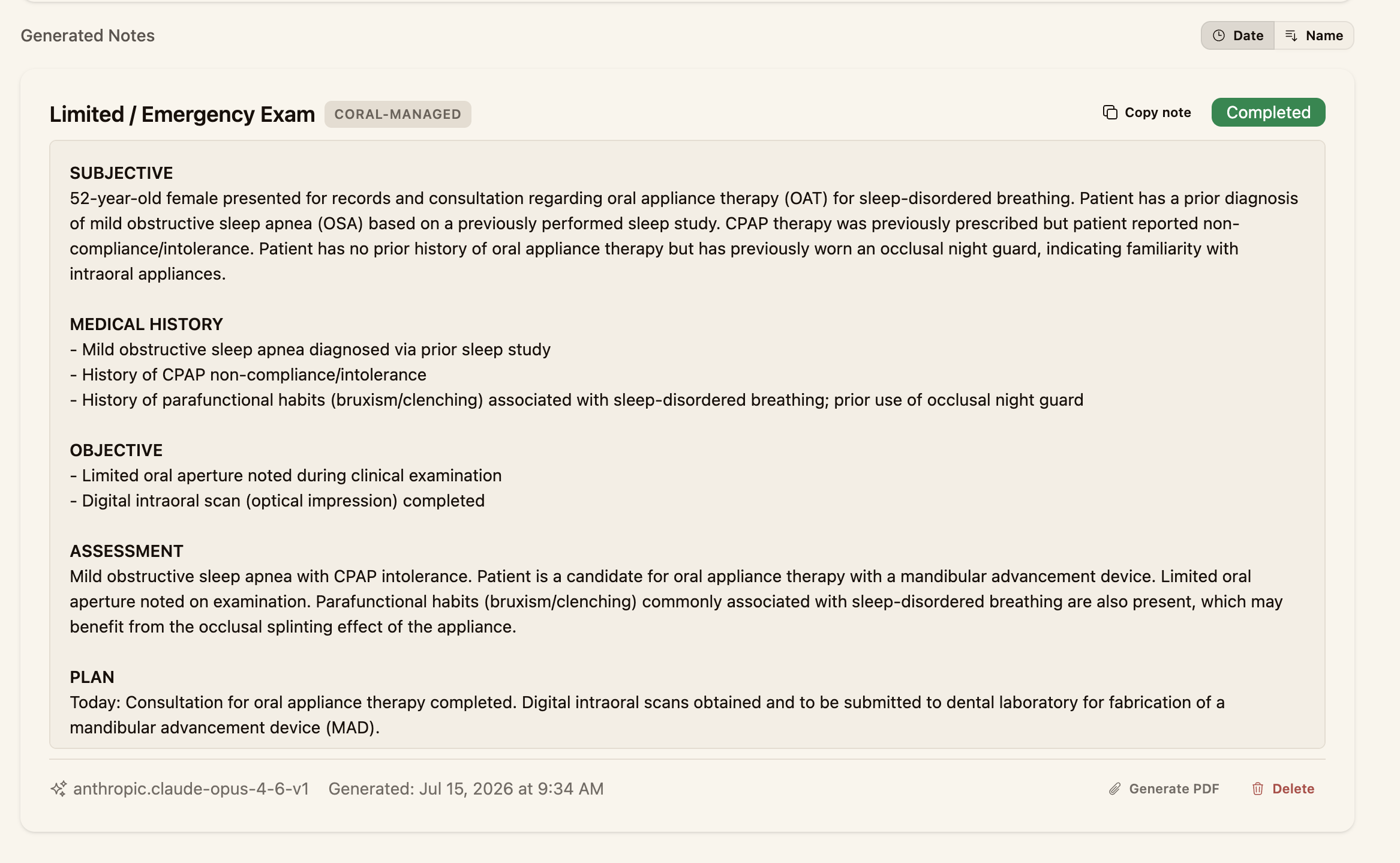
Step 3 — Review and use the note
The finished note appears under Generated Notes with a Completed badge. Review it, then:
- Copy note to paste into your chart, or Generate PDF to save it
- Regenerate if you want another pass, or Delete to remove it
Your practice's templates are managed under Practice Settings → Note Templates. Add or adjust templates there to change what's available in this dropdown.
Next steps
- Add the billable procedures (Adding Procedures)
- Build the claim (How to Create a Claim)