How to Start a Patient Visit
Overview
A visit is the container for everything that happens in a patient encounter — the recording, the transcript, clinical notes, procedures, and the claim. You create a visit for an existing patient, then work through its tabs.
Before you begin
The patient must already exist in Coral. If they don't, add them first.
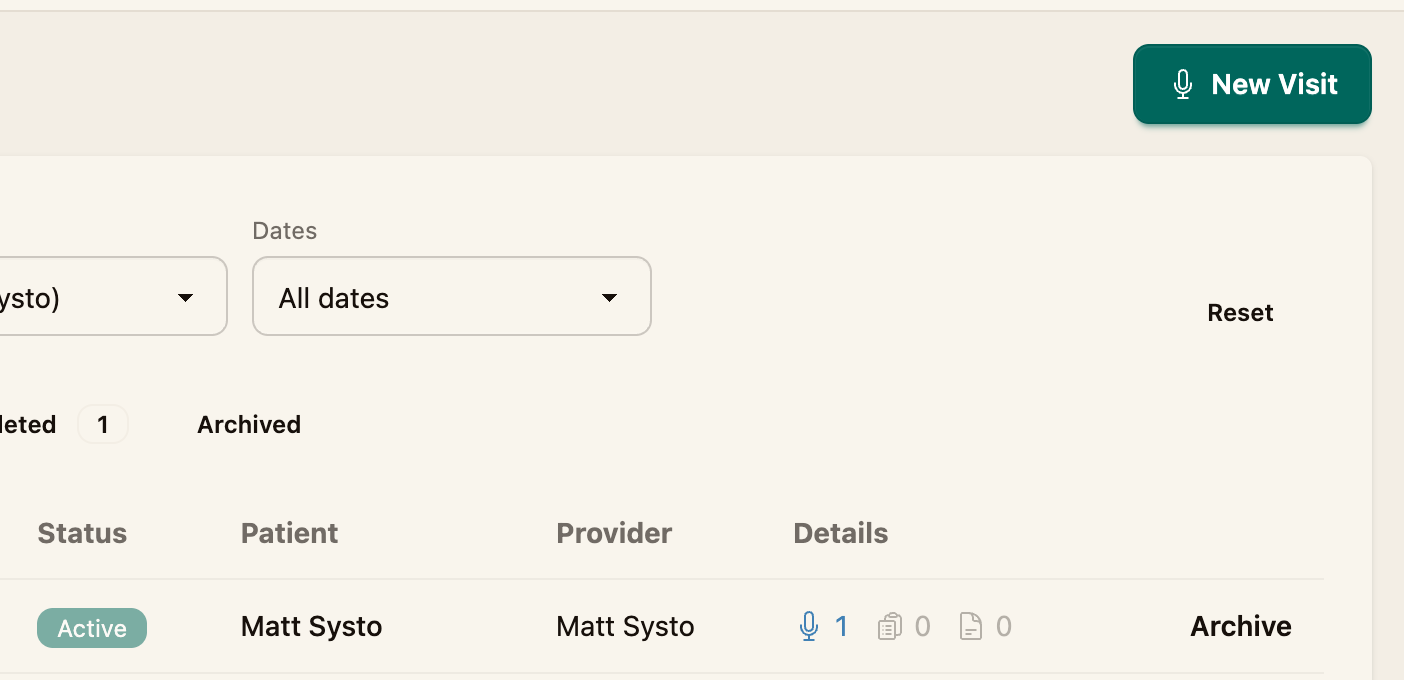
Step 1 — Open the New Visit form
Go to Visits in the navigation menu and click New Visit.
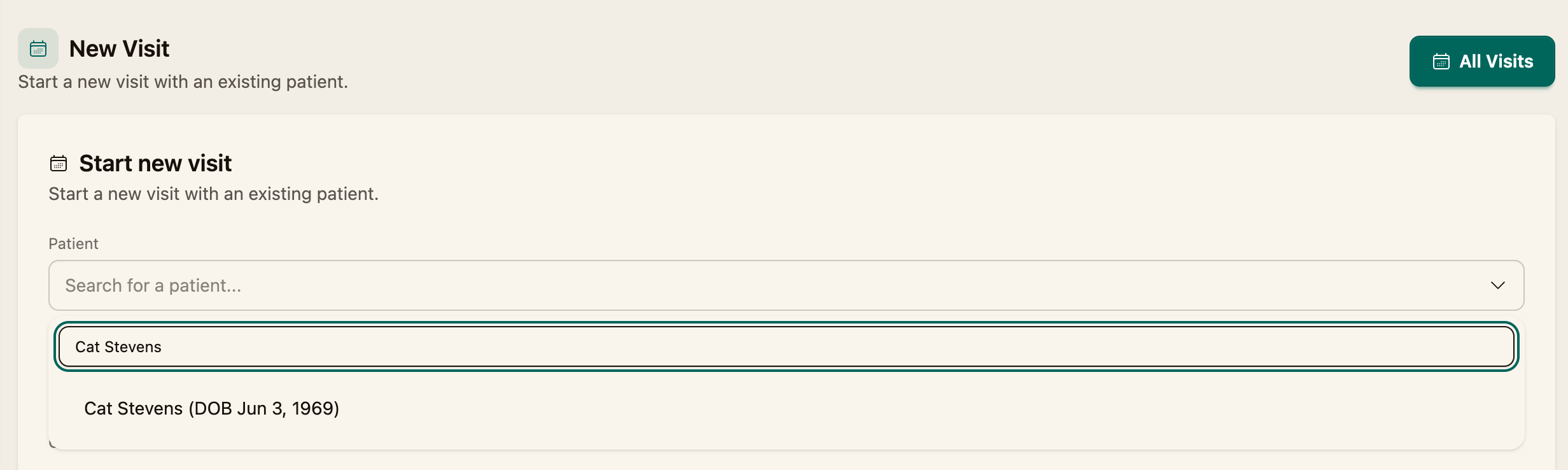
Step 2 — Choose the patient
In the Patient field, search for and select the patient.
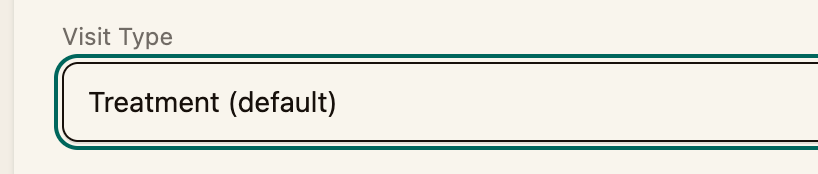
Step 3 — Set the visit type
Choose the Visit Type:
- Treatment (default) — a standard treatment visit
- Preventative — a hygiene or preventative visit
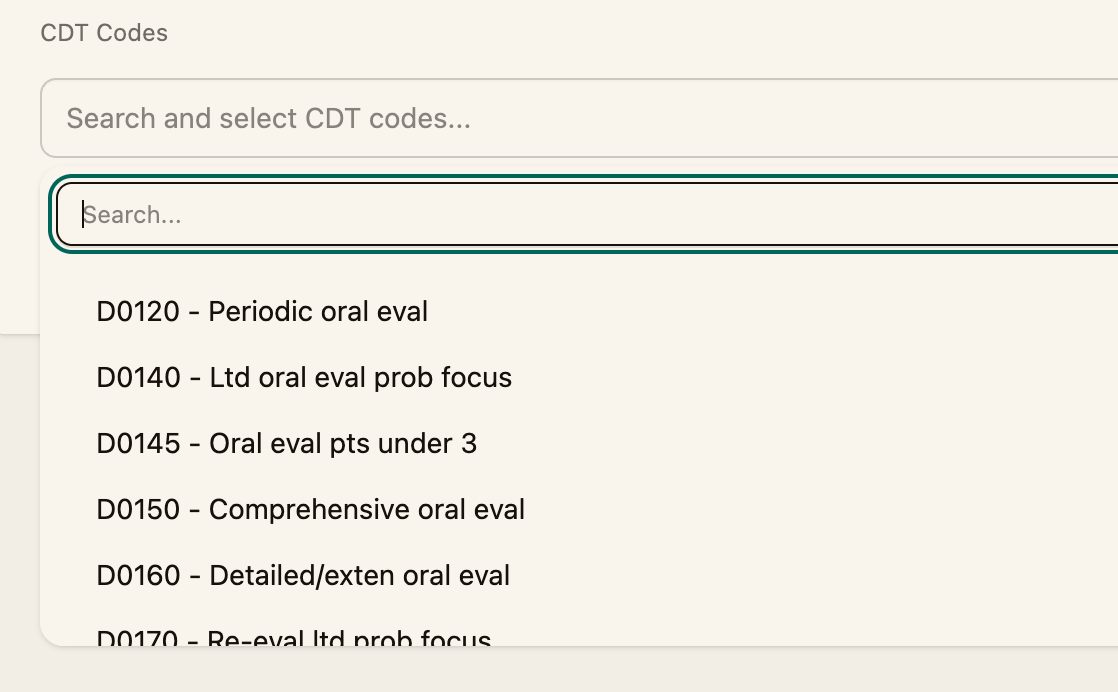
Step 4 — Add CDT codes (optional)
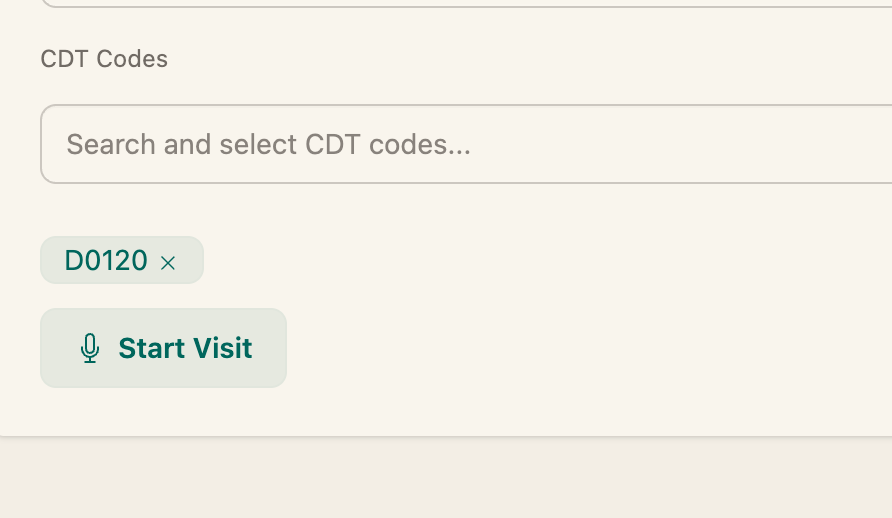
If you already know the dental codes for the visit, search and select them under CDT Codes. You can also leave this blank — Coral suggests codes from the recording, and you can edit them on the visit at any time.
Step 5 — Start the visit
Click Start Visit. Coral creates the visit and opens it on the Scribe tab, ready to record.
Managing a visit's status
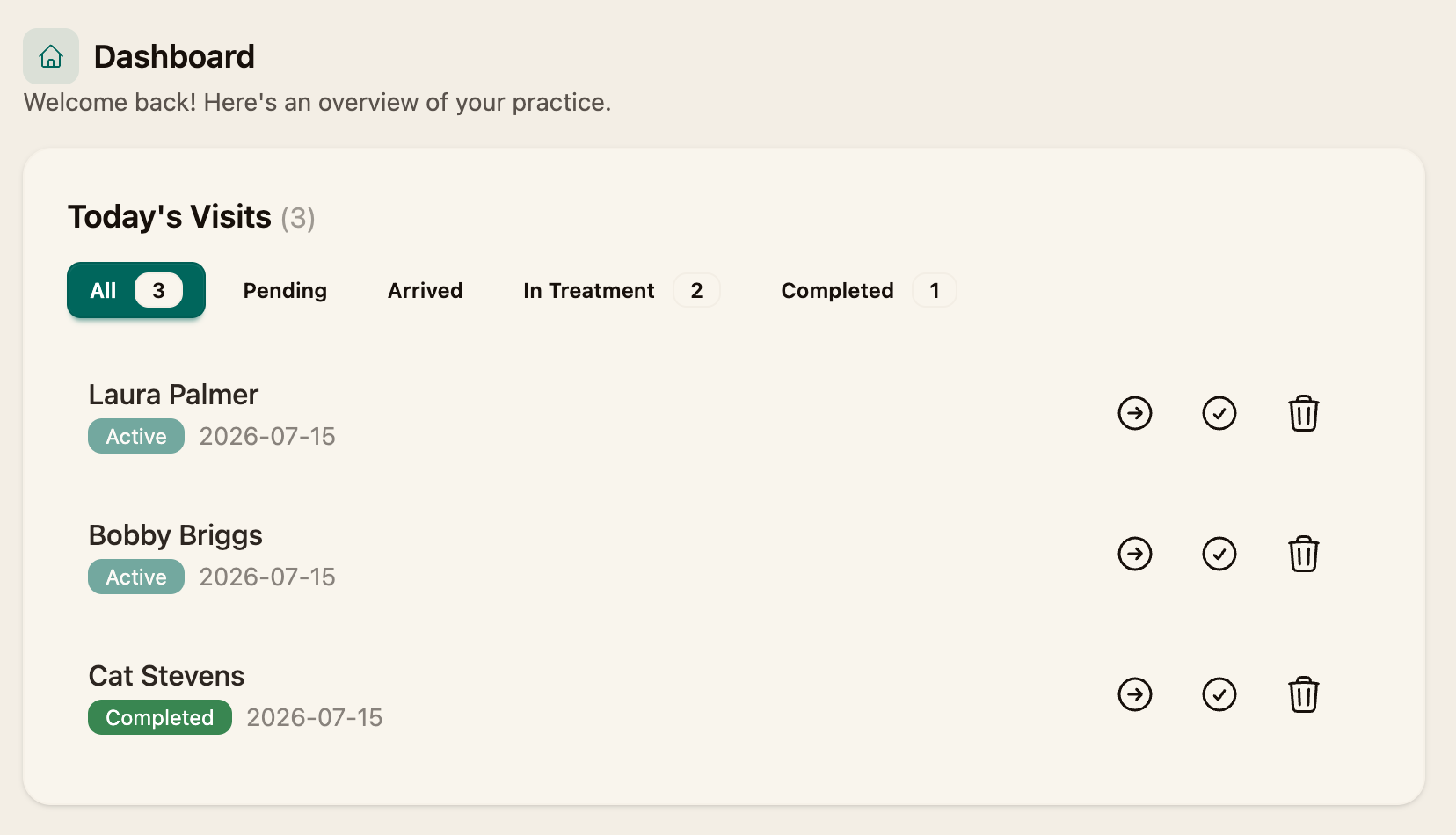
Visits move through statuses you can track from the Dashboard (Today's Visits) and the Visits list — Pending → Arrived → In Treatment → Completed. Use the controls on each visit row to advance a visit, mark it complete, or archive it.
Next steps
- Record the encounter (How to Start a Visit Recording)