Adding a Medical Insurance Card
Overview
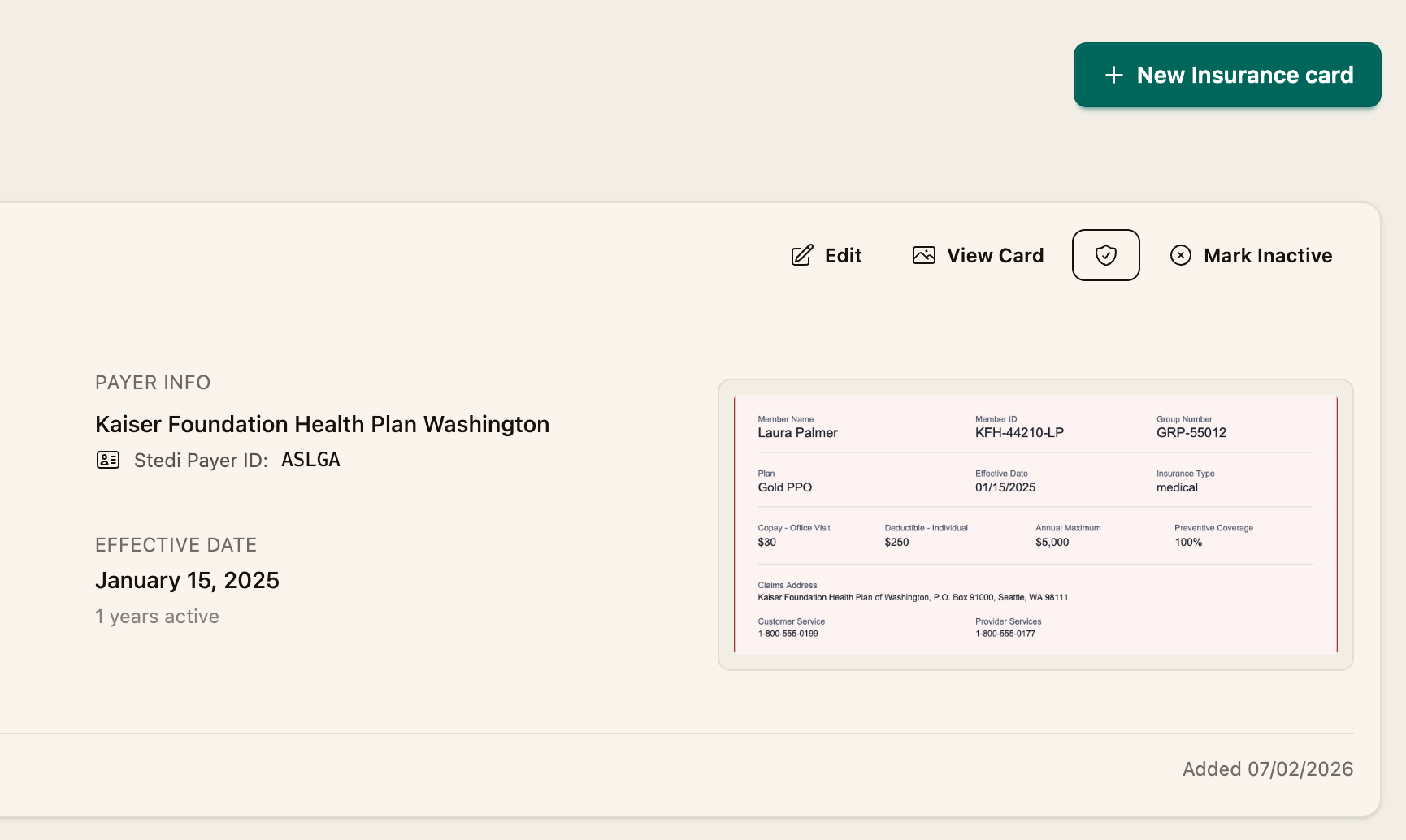
An insurance card holds the coverage details Coral needs to build and submit a claim — the payer, member ID, group number, and plan. The fastest way to add one is to upload a photo of the card and let Coral scan it, then review the extracted details. You can also enter everything manually.
Before you begin
Open the patient's record, then click Insurance Cards to see their cards. (You can reach a patient from the Patients list.)
Step 1 — Start a new card
On the patient's Insurance Cards page, click New Insurance card.
Step 2 — Upload and scan the card (recommended)
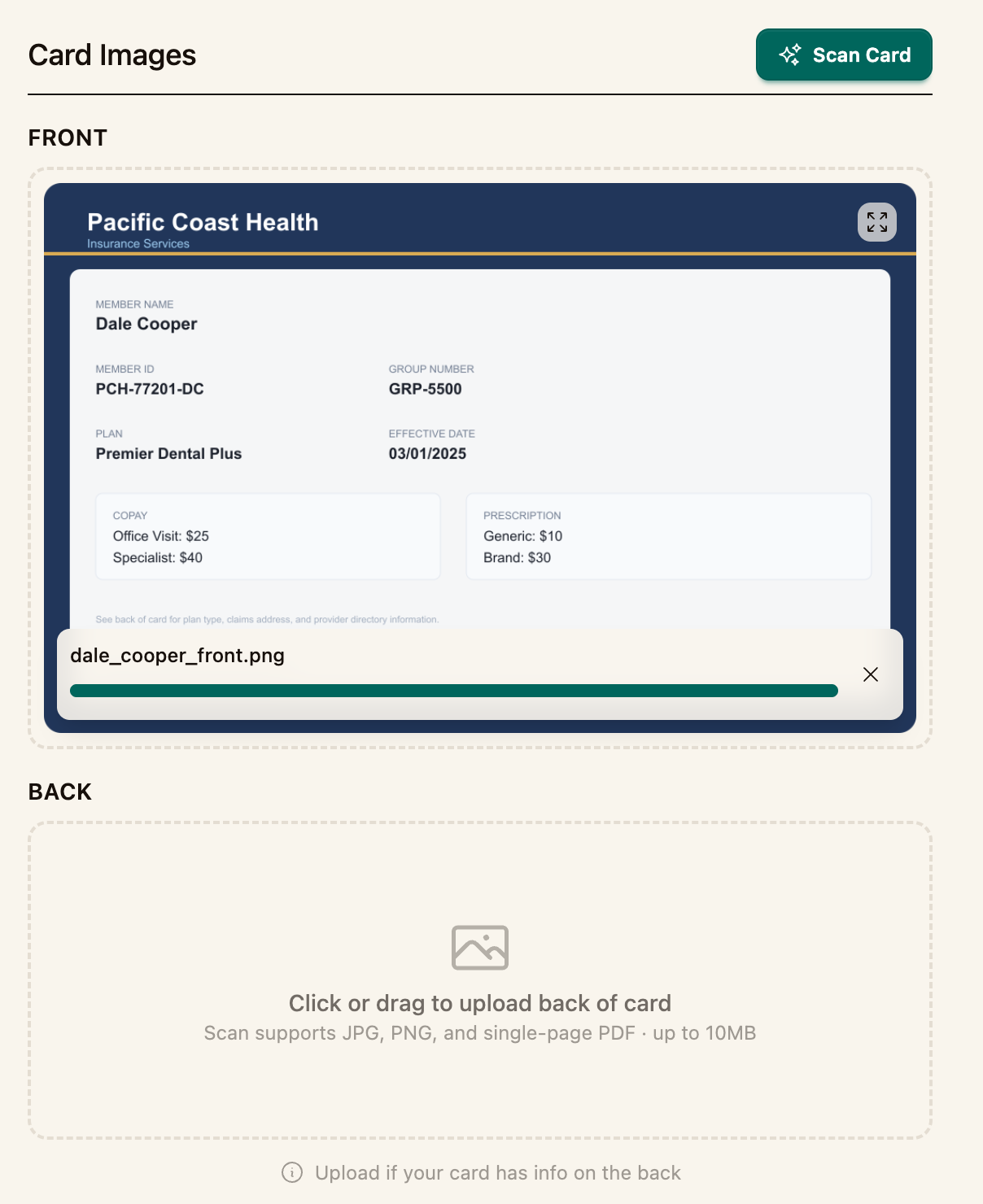
Under Upload, Scan, and Auto-fill:
- Click or drag to upload the front of the card.
- Upload the back as well if it has information on it.
- Click Scan Card. Coral reads the images and fills in the details below.
Images can be JPG, PNG, or a single-page PDF, up to 10MB each.
Step 3 — Review and complete the details
Check the auto-filled fields under Manual Entry / Review, and fill in anything that's blank:
- Payer — search and select the insurance company
- Member ID
- Group Number
- Plan
- Effective Date
- Insurance Type — HMO, PPO, EPO, GMO, or Other
- Relationship — the patient's relationship to the subscriber (Self, Parent, Spouse, Child, and so on)
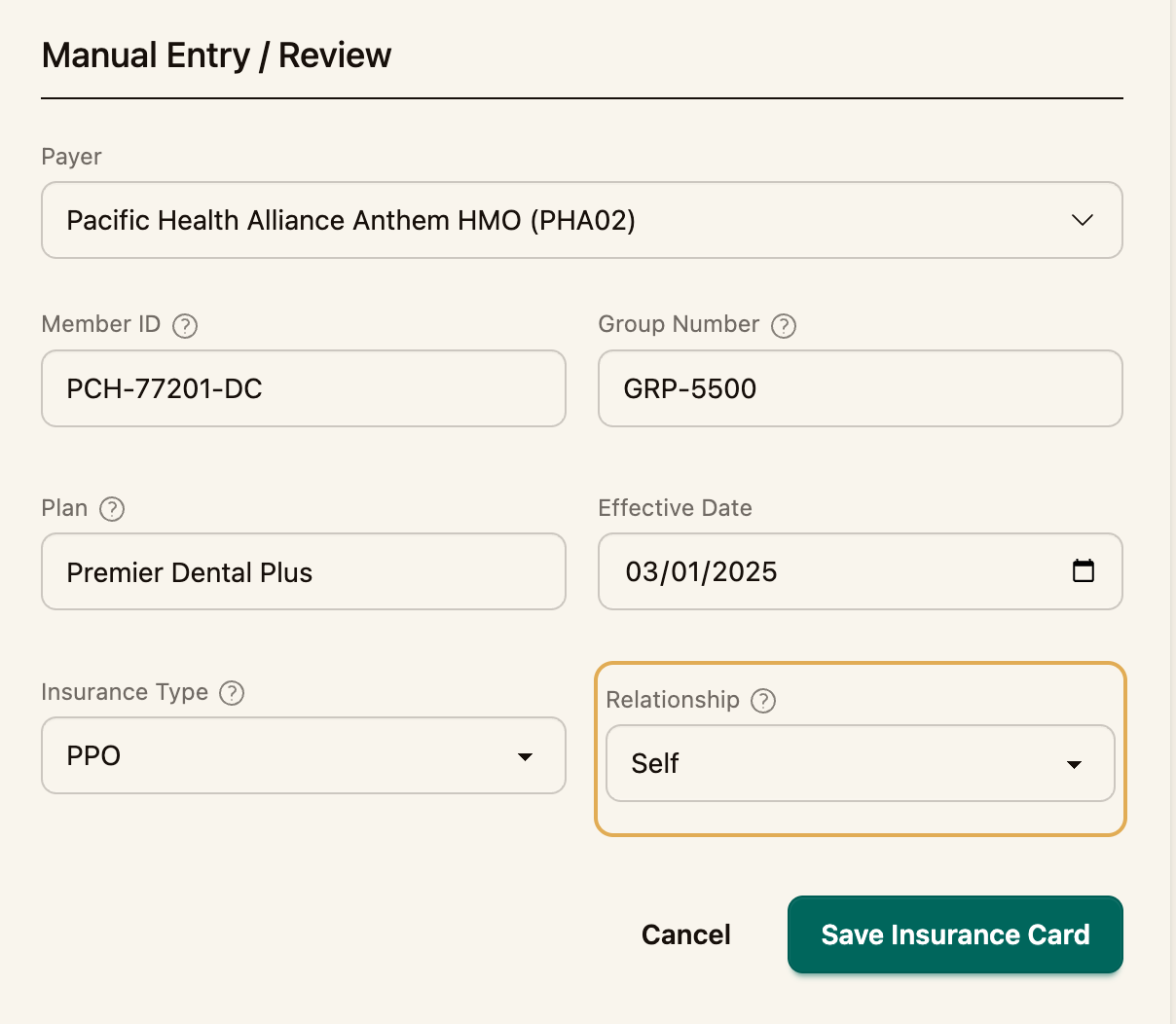
No card image? You can skip the scan and fill in every field by hand — the same fields are available under Manual Entry / Review.
Step 4 — Save
Click Save Insurance Card. The card now appears on the patient's record and can be selected when you build a claim.
Next steps
- Use the card on a claim (How to Create a Claim)