Managing Fee Schedules
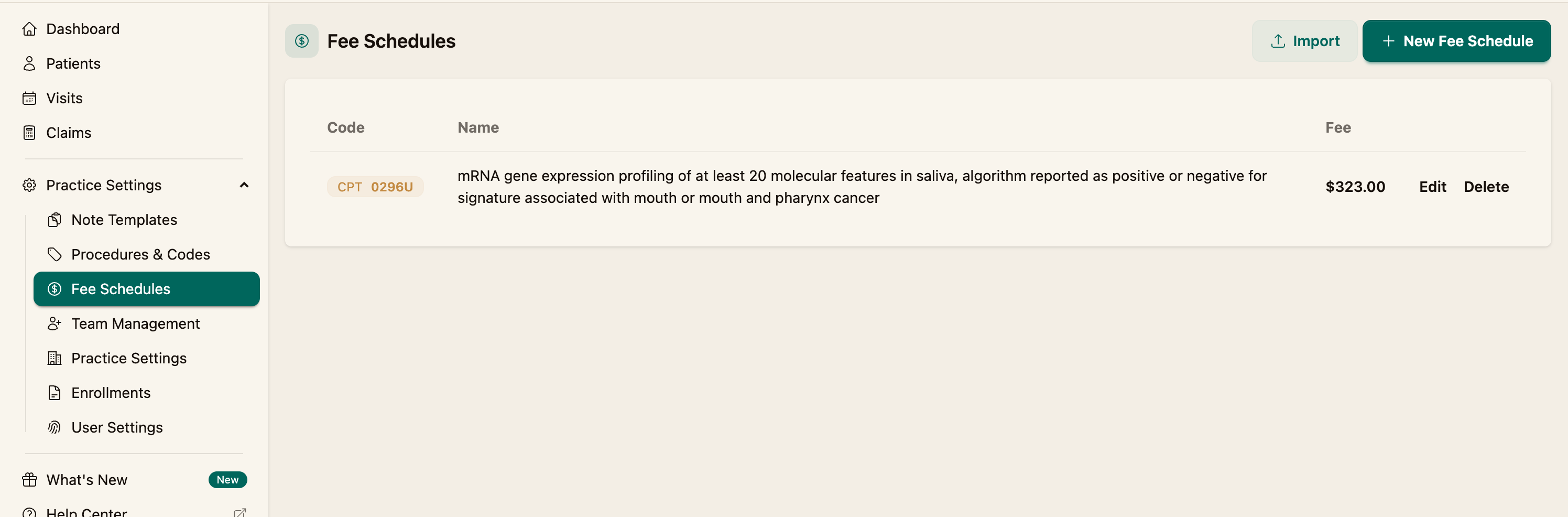
Your fee schedule is the list of fees your practice charges per code. Coral uses it to fill in the fee automatically when you add a procedure. You manage it under Practice Settings → Fee Schedules, where each entry maps a code to a fee.
You can load fees two ways: import many at once from a CSV, or add them one at a time.
Import fees from a CSV
Step 1 — Open the import page
On the Fee Schedules page, click Import.
Step 2 — Prepare your CSV
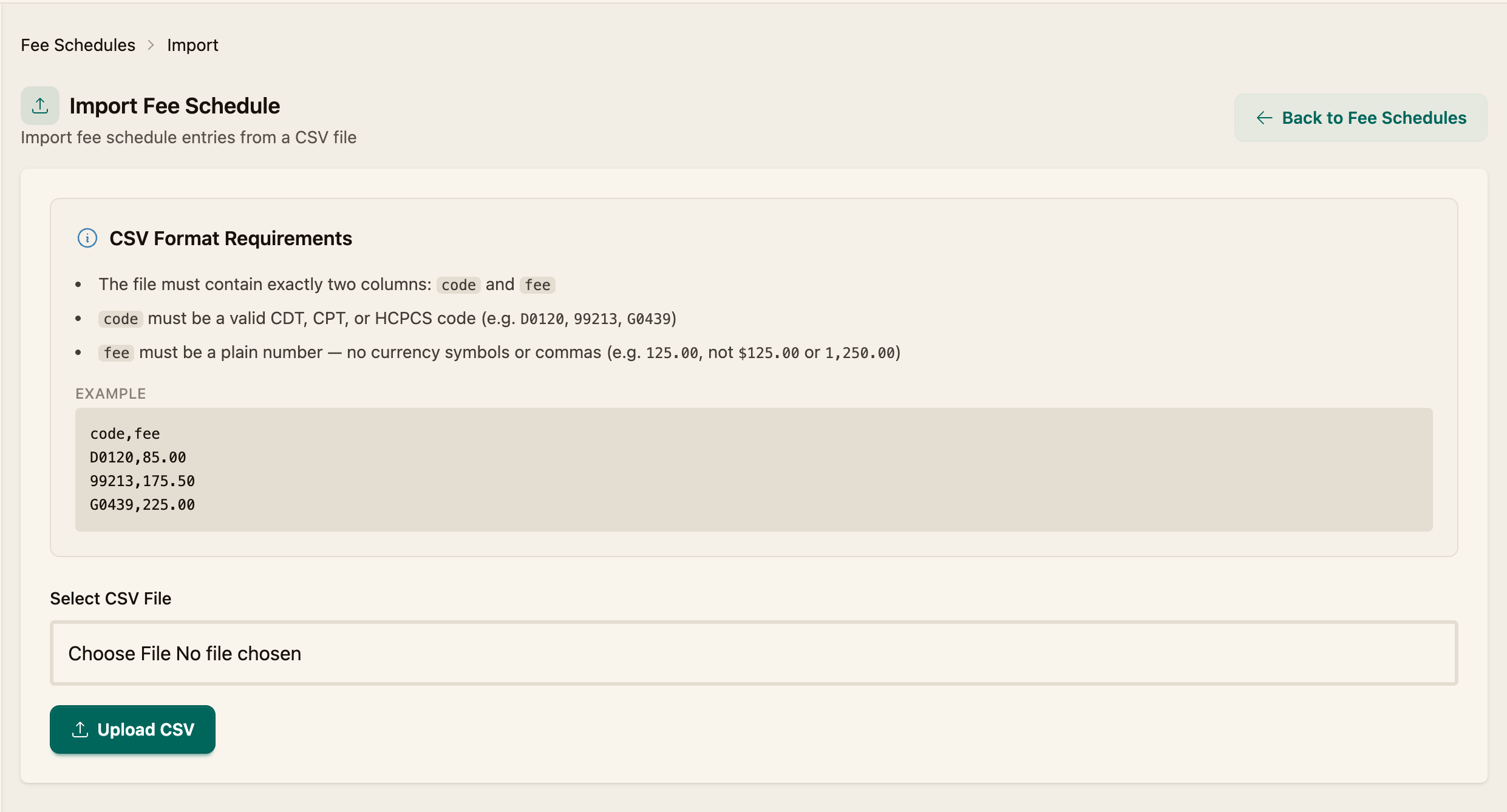
Your file must have exactly two columns, code and fee:
- code — a valid CDT, CPT, or HCPCS code (e.g.
D0120,99213,G0439) - fee — a plain number, with no currency symbol or commas (e.g.
125.00, not$125.00or1,250.00)
code,fee
D0120,85.00
99213,175.50
G0439,225.00
Step 3 — Upload
Click Select CSV File, choose your file, and click Upload CSV. The fees load into your schedule.
Add a single fee
Step 1 — Start a new entry
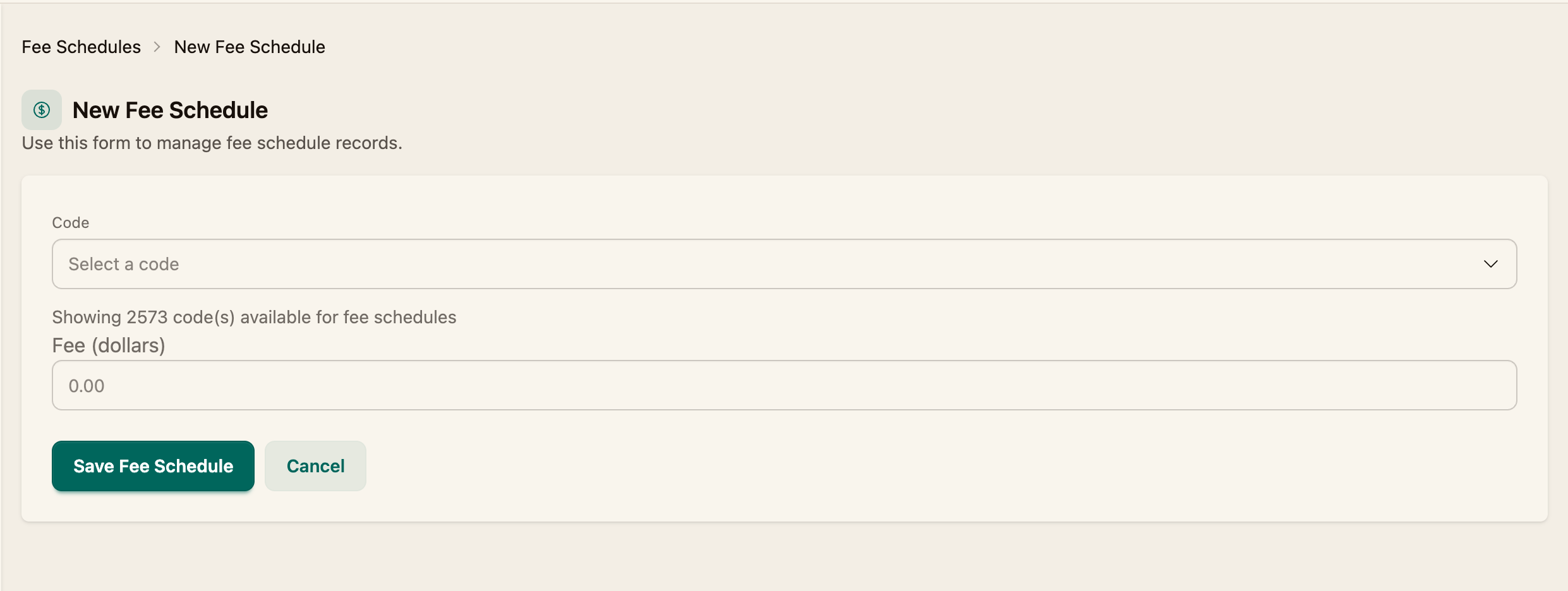
On the Fee Schedules page, click New Fee Schedule.
Step 2 — Choose the code and fee
Select the Code, enter the Fee (dollars), and click Save Fee Schedule.
Edit or remove fees
From the Fee Schedules list, use Show, Edit, or Delete on any entry to review, update, or remove it.

Related
- Fees flow into procedures (Adding Procedures)