Managing Your Team
Add the providers and staff at your practice as team members so they can sign in and work in Coral. You manage everyone from Practice Settings → Team Management.
Roles
When you invite someone, you assign a Practice Role:
- Owner — full access, including practice configuration
- Admin — administrative access
- Dentist — a rendering provider
- Staff — front-office and support access
Invite a team member
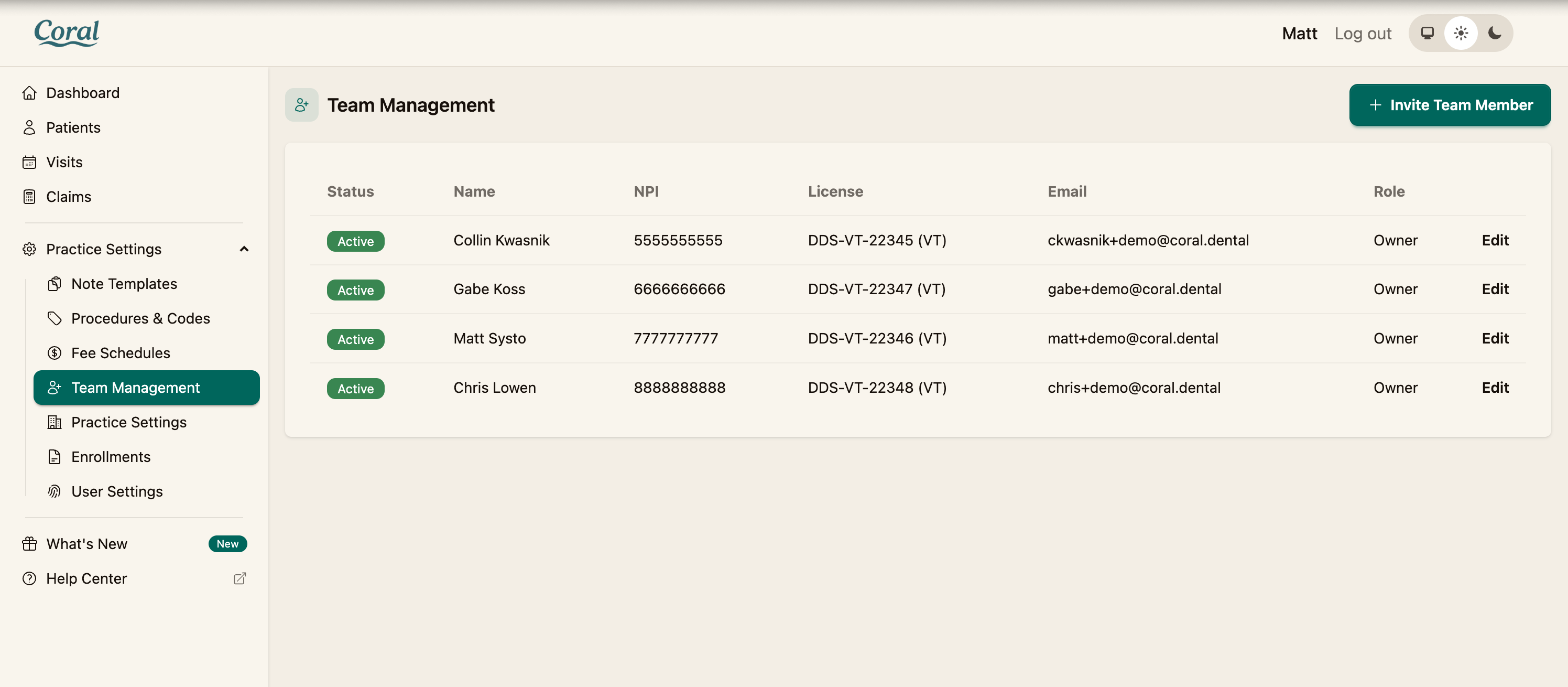
Step 1 — Open Team Management
From the navigation menu, go to Team Management. The table lists your current members with their name, NPI, license, email, and role.
Step 2 — Start an invite
Click Invite Team Member.
Step 3 — Enter their details
Only Email and Practice Role are required — anything you leave blank (name, NPI, license) is collected when the person first signs in. If you have them handy, you can also fill in:
- First Name and Last Name
- NPI
- License ID and License State
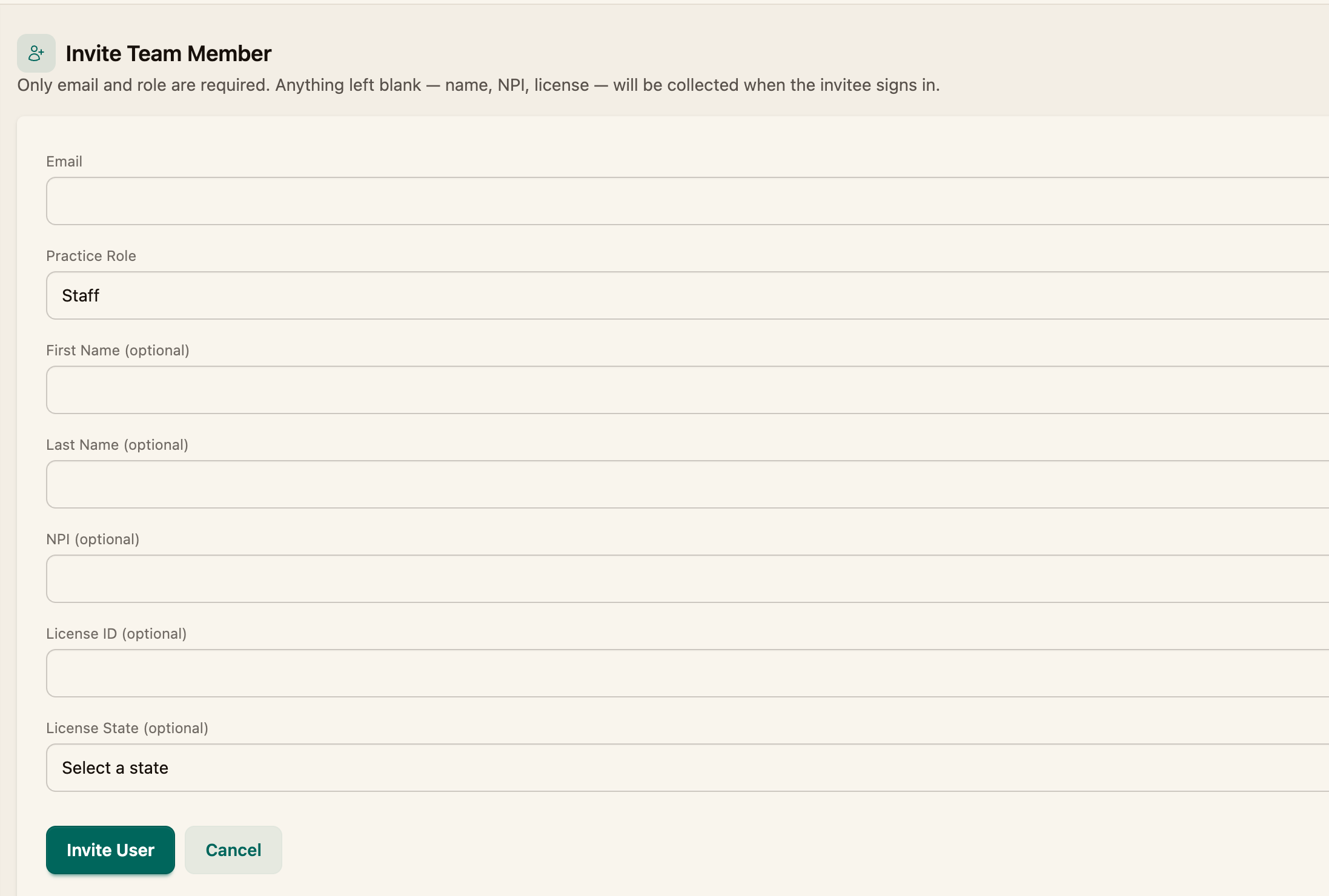
Step 4 — Send the invite
Click Invite User. Coral emails the person an invitation to set up their account.

Manage existing members
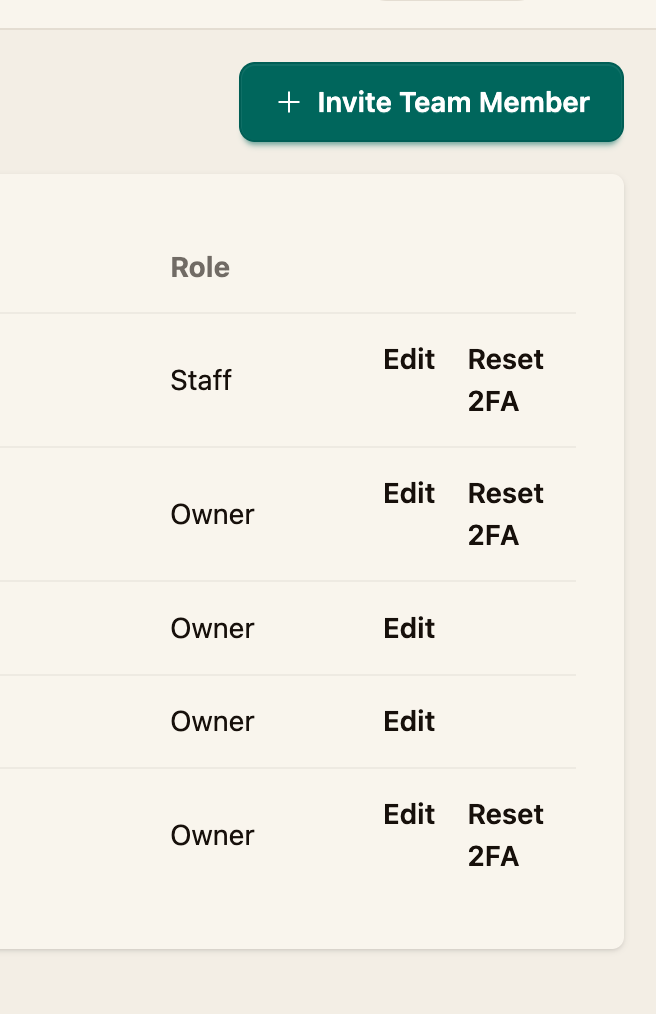
From the Team Management list you can:
- Edit — update a member's details or role
- Reset 2FA — clear a member's two-factor setup so they can re-enroll (for example, if they lost their device)
A provider's NPI and license are used on the claims they render, so keep them accurate for anyone who bills.